A real cut from your recording
The trimmer copies the selected sample range from the decoded audio. It does not generate a replacement sound or fill the selection with a demonstration file.
Keep the useful part of a short recording. Select a start and end, check the cut and download WAV, with the audio processed locally in your browser.
Choose your file in the audio workspace, adjust the controls and download the result. Processing stays in your browser; no upload is required.
Files stay on your device. Download the result before leaving; refreshing clears the local edit.
Open a mono or stereo recording your browser can decode. Each file can be up to 25 MB and 120 seconds. The tool reads the file on your device; you do not need an account or a generation service.
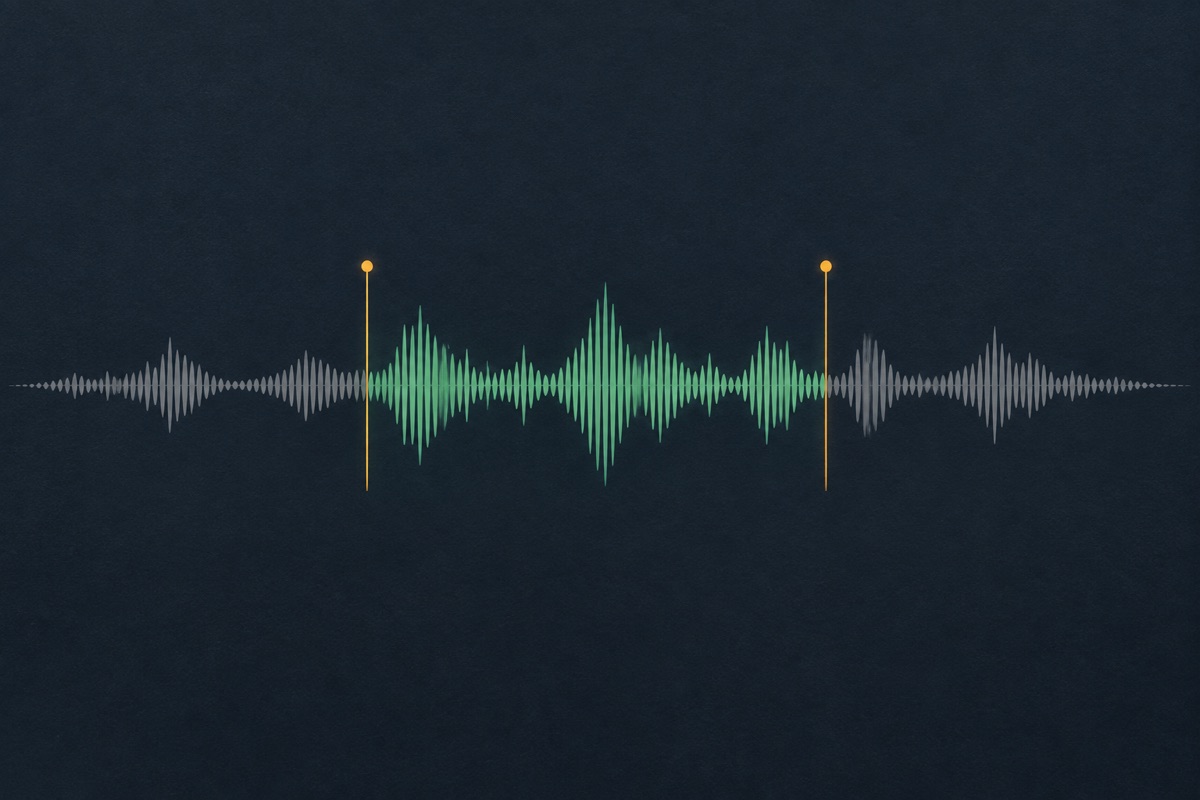
Use the measured input duration to choose your range. The end must follow the start and remain inside the recording. For a name drop or spoken cue, leave enough space to avoid cutting into the first consonant or final word.
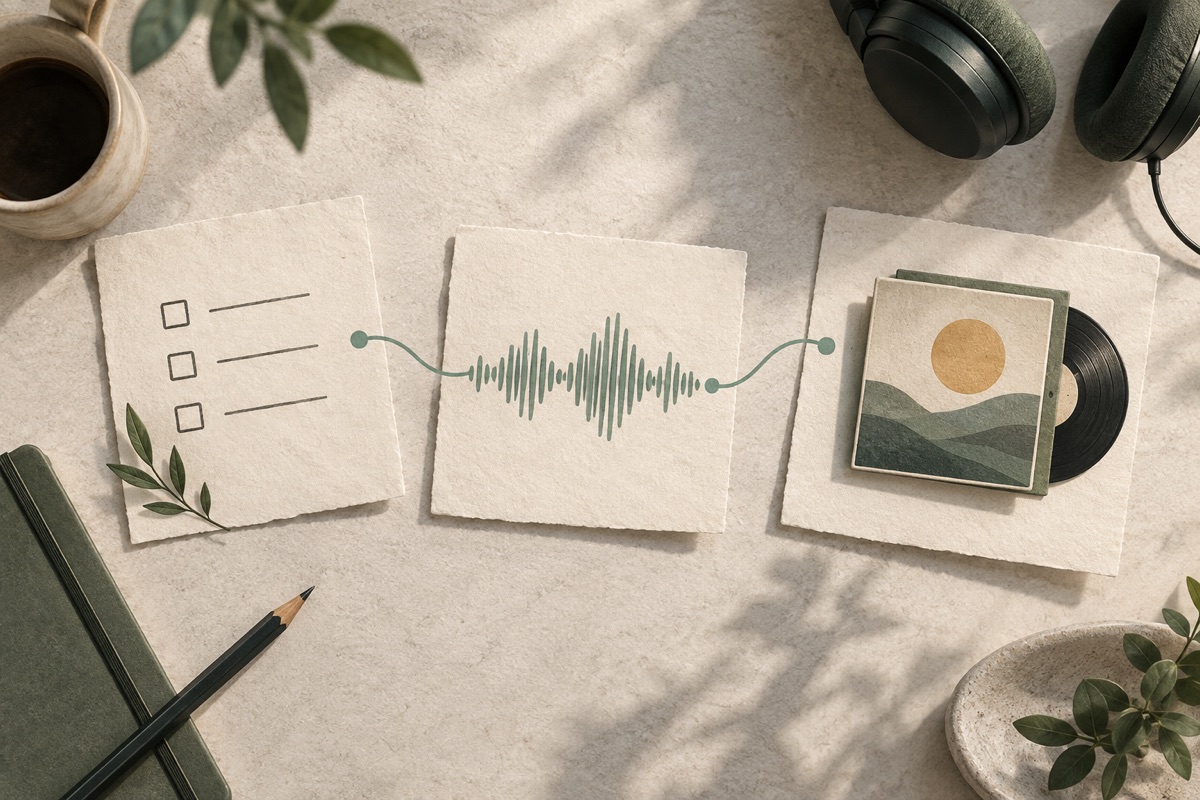
Process the selection to create a new WAV in memory. Listen to the result and check its measured duration. Download it before leaving or refreshing the page, because the browser-only edit is not saved to a private project automatically.
The trimmer copies the selected sample range from the decoded audio. It does not generate a replacement sound or fill the selection with a demonstration file.
Edit the selected recording locally in your browser. The trimmer does not upload the audio or add it to your project library.
The output duration is computed from the selected sample count. It is not merely the text entered into a length field, and invalid or reversed ranges produce an error.
The export is 16-bit PCM WAV. The filename and interface identify that format, even when the imported source was an MP3 or another browser-supported recording.
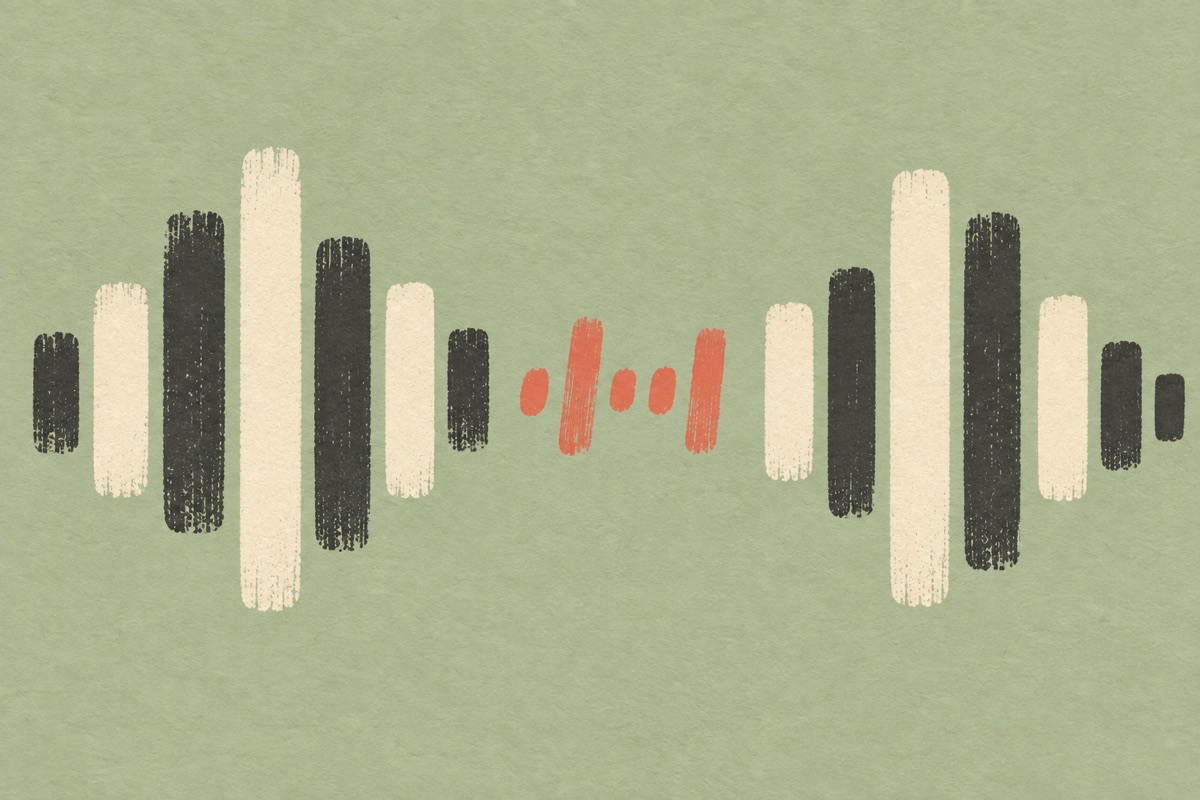
The most useful audio cut is not always the smallest possible selection. A spoken name begins before its strongest vowel, and removing that first consonant can make it sound like a different word. Listen to the original in your usual player, identify a range, then audition the trimmed output here. Leave a little room at the end if the voice has a natural breath, reverb or echo tail.
The start and end controls use seconds, with fractional values for short selections. They are translated to positions in the decoded samples. This gives a concrete time range, but the tool does not detect sentence boundaries, beat grids or musical phrases automatically. You are choosing what to keep. If a sudden boundary clicks, adjust it or apply a short fade in the Audio Fade tool.
Make a listening decision before choosing the final numbers. A waveform can help locate a pause, but it cannot tell you whether a quiet consonant or fading note still matters. Set a rough range, process it and listen to both edges. If the opening sounds abrupt, move the start slightly earlier rather than assuming the tallest waveform peak is the beginning of the word. If the tail is useful but too long, keep it for now and consider a deliberate fade after the cut. The aim is a complete usable phrase, not the shortest possible file.

A browser-supported file is decoded into audio samples before trimming. The output is written as WAV rather than attempting a lossless compressed-frame edit. Importing an MP3 and exporting WAV does not recover quality that was already removed by MP3 compression. It gives you an uncompressed representation of the decoded selection, suitable for further editing in many audio applications.
The browser decides which input formats it can decode. WAV and MP3 are commonly supported, but unusual codecs, damaged headers or protected files may fail. Use a standard recording within the file-size and duration limits. If decoding fails, choose another file or convert the source with a trusted application; changing its filename extension alone does not change its codec.
Plan the edit around what will happen next. A clip for a DJ cue, a voice tag or a podcast transition may need different amounts of space before and after the main sound. Keep an untouched copy while you decide. If you intend to join several cuts, export each one with a name that describes its role, then check the whole sequence. This trimmer handles one continuous selection at a time; it is not a multitrack editor that remembers a song arrangement. Local editing also means you must download the result before leaving the page.
This tool creates a new result in memory and leaves the file you selected untouched. Compare the duration and the audible start and ending before downloading. A successful processing message is not a substitute for listening, especially when the selection carries a business name, legal condition or tightly timed musical transition.
Download the result into your own file workflow. Refreshing the page clears the current edit and its temporary preview. If you want to keep a conversation, source recording and several mixes in an account project, use the Agent upload workflow. Browser trimming is an immediate file operation and does not automatically save the recording to My creations.

Remove unused space before or after a finished drop. Keep the name intact and test the new cue in your DJ software before replacing an existing file in a set.
Listen to the full jingle source and choose the section that contains the clearest brand line. Check the musical ending instead of assuming any fixed-length excerpt will resolve naturally.
Cut a usable take from a short recording before uploading it to a private agent project. Avoid keeping count-ins or room noise simply because they were recorded before the actual line.
You can import an MP3 when your browser supports it, select a range and download the decoded cut as WAV. The tool does not export a compressed MP3 or claim a lossless MP3 frame edit. Check the file format requested by your destination before delivering the result.
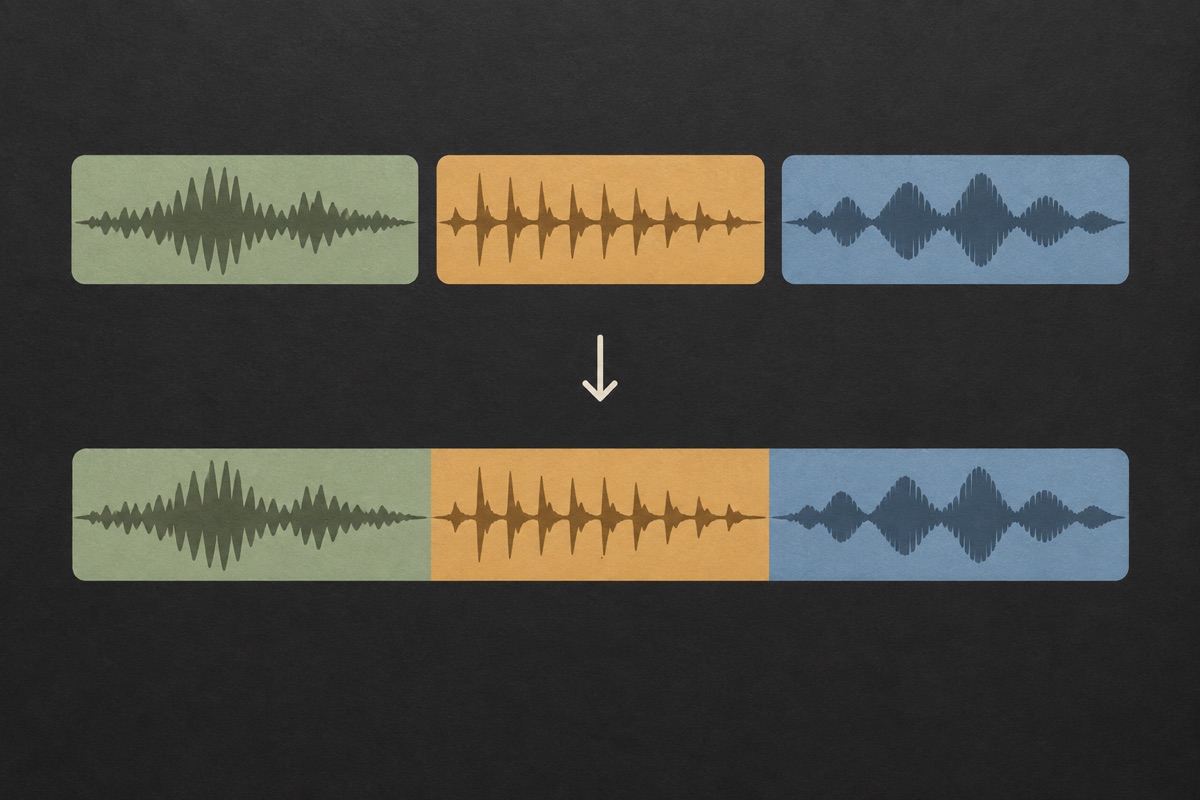
This version keeps one continuous range between a start and an end. To remove a middle passage, create the two ranges you want separately and use Audio Joiner to concatenate them. Listen at the join, because this simple workflow does not perform automatic speech-aware transitions.
WAV stores uncompressed PCM samples, while formats such as MP3 compress audio. A short WAV can therefore be larger than a longer compressed source. This is expected and does not by itself indicate higher original recording quality or a processing error.
This page accepts browser-decodable audio files. It does not provide video demuxing or video export. Extract the soundtrack with an appropriate video application first, then use a supported audio recording here.
No. Browser edits are local and are not automatically uploaded. Download the result before refreshing. The agent workspace has a separate, explicit upload flow for private saved projects, so you can decide when a recording leaves your device.
The start must be nonnegative, the end must follow it and the end cannot exceed the measured recording duration. Extremely tiny selections that round to no samples are also invalid. Check the input duration and choose a range that contains audible material.
The browser must be able to decode the selected recording. Each input is limited to 25 MB and 120 seconds, with mono or stereo audio. A familiar extension alone does not guarantee that every codec inside it will work on every device. If a valid-looking file fails, try a supported audio export from its original application and keep the untouched source. The output here is WAV, regardless of the input name. This page is designed for short recordings and cues, not a way to upload a long podcast or movie for background processing.
The selection is decoded and processed into a separate result; the tool does not overwrite the file you chose. Download the new WAV and give it a useful name so it is easy to distinguish from the source. Until you have checked the output in the application where it will be used, keep both copies. If you make another selection, treat it as another edit rather than assuming the first download is updated automatically. Closing or refreshing the page clears the temporary editing state, so a visible preview is not a substitute for a saved file.
This page uses the start and end positions you set. It does not automatically identify every silent region or decide which pauses should remain in speech. Listen to the recording and choose a continuous range that keeps the intended phrase intact. Some low-level material, such as room tone or a soft breath before a word, may be useful even if the waveform looks almost flat. If you need several nonadjacent sections, create separate cuts and review the sequence in a suitable editor or joiner, rather than expecting an automatic silence-removal pass.
A hard cut can expose a sudden change in the waveform, especially when the selection starts or ends inside a strong sound. Move the boundary toward a quieter moment and compare the preview again. A short fade may help soften an edge, but it cannot restore a consonant or note that was removed by the cut. Check the edit on headphones at a sensible level, then test it where the clip will play. The trimmer does not automatically find a musically perfect boundary, so the listening check is an important part of finishing the file.
Choose an existing recording, make the edit and download the result before leaving the page.