An explicit sequence
The displayed file order controls the output. Reordering a clip changes its position in the result, making it practical to assemble a short intro, voice line and closing cue.
Put short recordings in the right order and join them into one WAV. Check each transition, then download the combined result from your browser.
Choose your file in the audio workspace, adjust the controls and download the result. Processing stays in your browser; no upload is required.
Files stay on your device. Download the result before leaving; refreshing clears the local edit.
Select up to eight supported mono or stereo audio files. Each file must be no larger than 25 MB, and the combined result must fit within 120 seconds. The files are decoded locally in your browser.
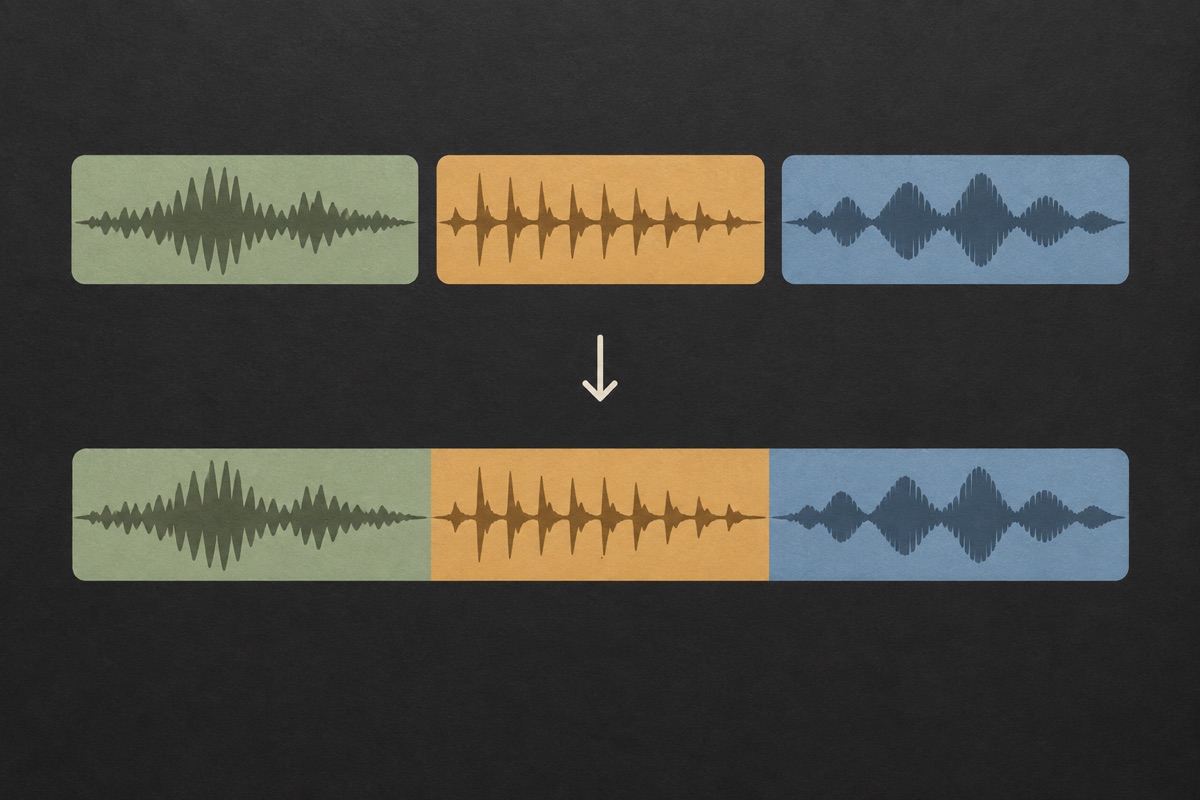
Use the up and down controls to move a clip or remove one you do not need. Read the filenames and measured lengths before processing. The joiner places the whole clips consecutively, in the visible order.

Process the sequence, then play the combined WAV. Pay attention to transitions, silent gaps and level differences. Download the result before leaving; the local sequence and preview are cleared by a refresh.
The displayed file order controls the output. Reordering a clip changes its position in the result, making it practical to assemble a short intro, voice line and closing cue.
Inputs are resampled to 44.1 kHz before joining. Mono is duplicated when a stereo output is needed, and clips retain their audible order in one PCM WAV.
Join files locally without generating new sound or deducting generation credits. Download the result before leaving the page.
The joiner accepts up to eight clips and a combined length of 120 seconds. It does not present a large multi-track session as if it were a simple instant merge.

An audio joiner places recordings one after another. If you select an introduction, a voice line and a closing sound, the result plays those three files in sequence. It does not play the voice over the introduction or turn a music track into a background bed. Use the agent’s mix workflow when your intention is simultaneous voice and music.
The difference matters when you build a podcast opening or radio cue. A music file followed by a voice file creates a handover; a voice layered over music creates a mix. Decide which arrangement you need before selecting files. You can trim leading silence in each clip first, but the joiner itself includes the entire decoded recording in the visible order.
Decide whether the desired result is a sequence or an overlap before importing files. A station opening followed by a spoken message and then a closing cue is a sequence. Speech playing at the same time as a music bed is a mix. The joiner creates the first kind of result: one clip ends and the next begins. It cannot make a backing track continue underneath a voice by itself. For that task, prepare the voice and background in the Agent mix workflow or another suitable editor, then use the joiner only if you need to connect finished segments.
Listen to the end of one clip and the beginning of the next. A abrupt change from a loud musical cue to a quiet voice can be distracting even when the files are joined correctly. Normalize appropriate sources or adjust them in your regular editor before merging. The joiner does not automatically balance perceived loudness or recognize that a word has been cut in half.
Clips with different sample rates are converted to a common 44.1 kHz rate. If any input is stereo, the result is stereo; mono clips are copied into both channels. This preserves a usable channel layout but is not a high-end mastering or spatial processing service. The output is 16-bit PCM WAV, regardless of whether a supported source was compressed.
Keep a short handoff note when the sequence will be used by someone else. List the clip order and whether any gaps are intentional, then send the original pieces alongside the combined WAV if further editing is expected. A single joined file is convenient for playback, but it no longer provides separate editable clips in the browser after download. If you later need to swap a spoken line, return to the original pieces and rebuild the sequence. This is safer than cutting around uncertain boundaries in a file that has already been exported several times.

The combined WAV is convenient for playback and handoff, but it no longer behaves like a session with movable clip boundaries. Retain the individual sources if you expect to change the order later. This page does not save a DAW project or attach the inputs to your account. A refresh removes the in-browser sequence and temporary result.
The original files are left untouched on your device. Use clear filenames so you can recognize the order, especially if the clips have similar durations. After processing, play through all transitions instead of checking only the first few seconds. A downloaded WAV that starts correctly can still contain an unintended gap or an incorrectly ordered closing cue.

Place an introductory sound, spoken identifier and short tail in sequence. If the voice needs to overlap the music, make that mixed element first, then use the joiner for the remaining consecutive pieces.
Put several short spoken lines into a single file in a known order. Check that pauses between recordings sound intentional and that no duplicate line was selected.
Join a few recordings you own into a brief listening sequence. Keep the total within the length limit, and do not imply that a sequence of examples is one continuous original performance.
Yes, when your browser can decode both files. Each recording is converted to a common sample layout before concatenation and the result is WAV. The merge does not preserve the original compressed bitstream or export a combined MP3.
No. This version concatenates complete clips. If you need a soft boundary, apply fades to the relevant sources first. A fade changes the level within a clip; it still does not create an overlap or automatically align two musical phrases.
That is a mixing task rather than a joining task. Upload your own voice in the agent workspace and review a mix with an included background bed. The joiner plays files in sequence and should not be expected to layer them simultaneously.
The output length is calculated from the resampled audio frames and displayed in seconds. Conversion between sample rates can involve rounding to whole samples. This is a small timing detail, not an invitation to ignore an audible gap or a wrong selection.
It is removed from the current sequence, while the original on your device remains intact. Process again to create a result that reflects the new order. An existing downloaded WAV will not change retroactively.
This browser-only tool does not persist an editing session. Keep your source files, note their order if necessary and download the result before leaving. Private agent projects have their own explicit storage flow, but local joins are not added to that library automatically.
Each input must fit the current file limit of 25 MB and 120 seconds, and the combined result must also stay within 120 seconds. Adding several individually valid clips can therefore exceed the total-length limit. Trim unnecessary introductions, silence or tails before joining if that still preserves the intended content. The tool is aimed at short audio identities and sequences, not full-length album assembly. Check the displayed lengths before processing, and keep your original clips available so you can revise the order or shorten a segment without losing its source.
Use the ordering controls in the file list to arrange the clips before joining them. Listen to the combined result once the order is set, especially at the boundaries where a name, spoken message or musical tail meets the next file. Reordering does not rewrite the content of any clip, and a previous download will not update itself when you change the list. Export a new result after the revision. Give the final file a name that distinguishes it from earlier orders so a collaborator cannot accidentally use a superseded sequence.
Joining places recordings in sequence; it does not automatically make every clip sound equally loud. Different recording levels, speakers or music can create a noticeable jump. Compare the sources first and make any necessary level adjustments before combining them again. The Audio Normalizer can help with an overall RMS difference, but it does not replace detailed mixing, compression or a destination’s LUFS requirement. Listen to the actual transition rather than relying only on a number, because two different types of sound can feel different even after a similar gain adjustment.
The joiner prepares the decoded inputs for one consistent result. When a mono clip is combined with stereo material, the mono channel is used for both output sides so it remains audible in the resulting stereo file. This does not create a new stereo recording of the original source. Listen for any unexpected balance difference between sections, and remember that sample-rate conversion may occur during browser decoding or preparation. Keep the original files if their channel structure matters for later production, and inspect the downloaded WAV in the application where it will be used.
Choose an existing recording, make the edit and download the result before leaving the page.